

Red Hat 9 Root Password Reset on VMware
This guide explains how to reset the root password on a Red Hat 9 VM when root is enabled and you have a normal user account.
Summary
- Interrupt the boot process using
rd.break - Set SELinux to permissive with
enforcing=0 - Remount the root filesystem as read-write
- Change root to
/sysroot - Set the root password
- Exit back to the initramfs and remount the root filesystem as read-only
- Continue the normal boot process
- Log in as root and restore the SELinux context for
/etc/shadow
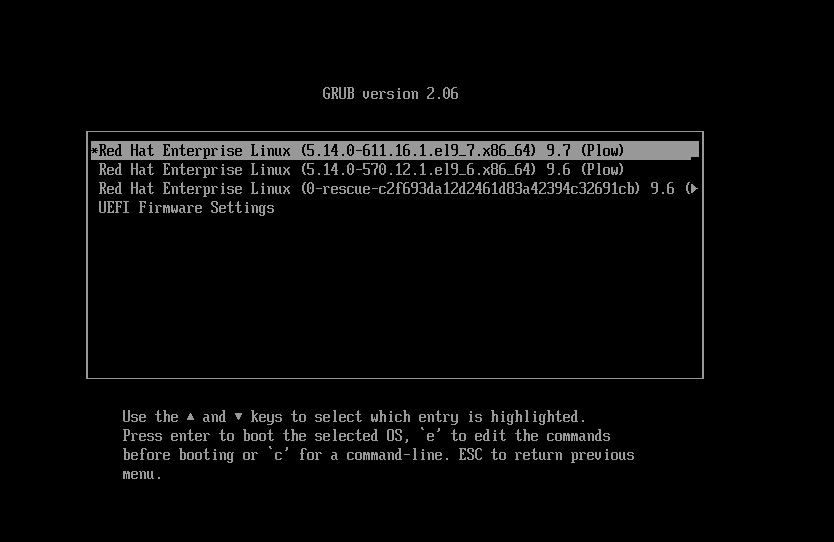
1. Restart and Access GRUB
- Restart your VM.
- Quickly press any key to stop the GRUB countdown.
- To send input to the BIOS/GRUB screen in VMware:
- Press
Ctrl + Altto release the mouse/keyboard from the host. - Highlight the desired boot entry.
- Press
Eto edit the boot options.
- Press
2. Edit Boot Options
- Move to the line starting with
linux. - Press
Ctrl + Eto go to the end of the line. - Add the following:
rd.break enforcing=0Press Ctrl + X to boot with these options.
3. Remount Filesystem and Change Root
Once the system boots, you will see the prompt:
switch_root:/#- Remount the root filesystem read/write:
mount -o remount,rw /sysroot
- Change root into the system:
chroot /sysroot
Prompt now changes to:
sh-5.1#4. Reset the Root Password
1. Run:
passwd2. Enter the new root password twice.
3. Exit back to the switch_root:/# prompt:
exit4. Remount filesystem read-only:
mount -o remount,ro /sysroot5. Exit emergency shell: #
exit5. Final Steps in Normal Boot
1. Login as root or normal user, then switch to root:
su -2. Restore SELinux context on /etc/shadow:
restorecon -v /etc/shadow3. Verify SELinux mode: getenforce Output should be Permissive.
4. Set SELinux to enforcing mode:
setenforce 1or
setenforce Enforcing